Developer Settings
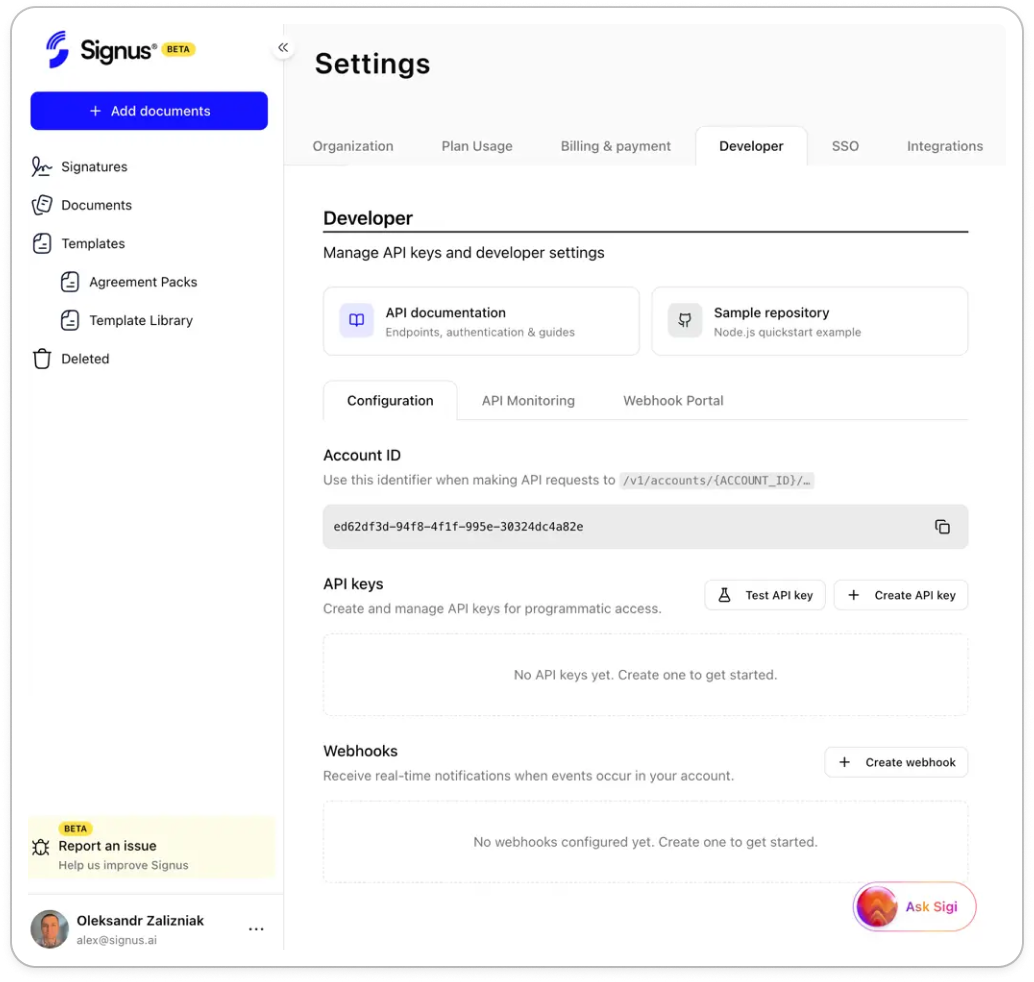
All developer-facing configuration lives in one place in the Signus app: Settings → Developer.
Access
The Developer tab is visible only to Organization Admins on a workspace with API access enabled. If you don’t see it — or if every action on the page is disabled — your team may not have API access yet. Contact support to turn it on.
What’s on the page
The page is organized into three sub-tabs. Most of what you’ll use lives under Configuration.
1. Configuration
The default view. Three sections, top to bottom:
- Account ID — a UUID used in every public API URL. More ↓
- API Keys — create, test, and delete keys. More ↓
- Webhooks — register endpoints that receive real-time events. See the full Webhooks guide.
2. API Monitoring
Two read-only panels:
- API Usage — request volume and patterns across your keys.
- Recent Errors — requests that returned 4xx/5xx, with timestamps.
3. Webhook Portal
Embedded full-featured webhook portal (powered by Svix) for advanced management: delivery logs, per-attempt diagnostics, manual retries, and replay.
Quick-access cards
At the top of the page, two cards link to external resources:
- API documentation → api.signus.ai/docs
- Sample repository → signus-team/signus-api-nodejs-example
Account ID
Your workspace’s Account ID is a UUID shown in the first section of the Configuration tab, for example:
ed62df3d-94f8-4f1f-995e-30324dc4a82eYou need it for every public API request — all endpoints are scoped under
/v1/accounts/{ACCOUNT_ID}/....
Click the copy icon next to the UUID to copy it to your clipboard.
API Keys
The API Keys section has three controls:
- Create API key — opens a dialog that only asks for a name (e.g.
Production,Staging,CI/CD). On submit, the secret is shown once — copy it immediately. - Test API key — opens a dialog where you paste any key and the app fires a real
GET /v1/accounts/{ACCOUNT_ID}/templatesrequest against it, showing the HTTP status, response time, and truncated JSON response. Also shows the exact cURL command for reproducibility. - Delete (trash icon on each row) — immediately revokes the key. Any application
still using it gets
401 Unauthorizedon the next call.
Existing keys show only their name and creation date in the list — the secret is never shown again after creation. To “rotate” a key, create a new one, switch your app over to it, then delete the old one.
Webhooks
The Webhooks section lets you register endpoints that receive real-time event notifications. Each endpoint has:
- An HTTPS URL (non-HTTPS is rejected).
- An optional description.
- A selection of event types to subscribe to (7 available — see the Webhooks guide).
- A signing secret you can reveal to verify webhook authenticity.
- A test-fire button that sends a synthetic event and shows the endpoint’s response inline.